Common Technical Errors
If you fail to follow the guidelines of an e-procurement platform, even if your business is eligible and provides a good rate, your bid may not be recorded or may be rejected.
Common technical errors occur at the last moment and therefore there may be little time to resolve issues with your browser settings, DSC drivers or price sheet corruption.
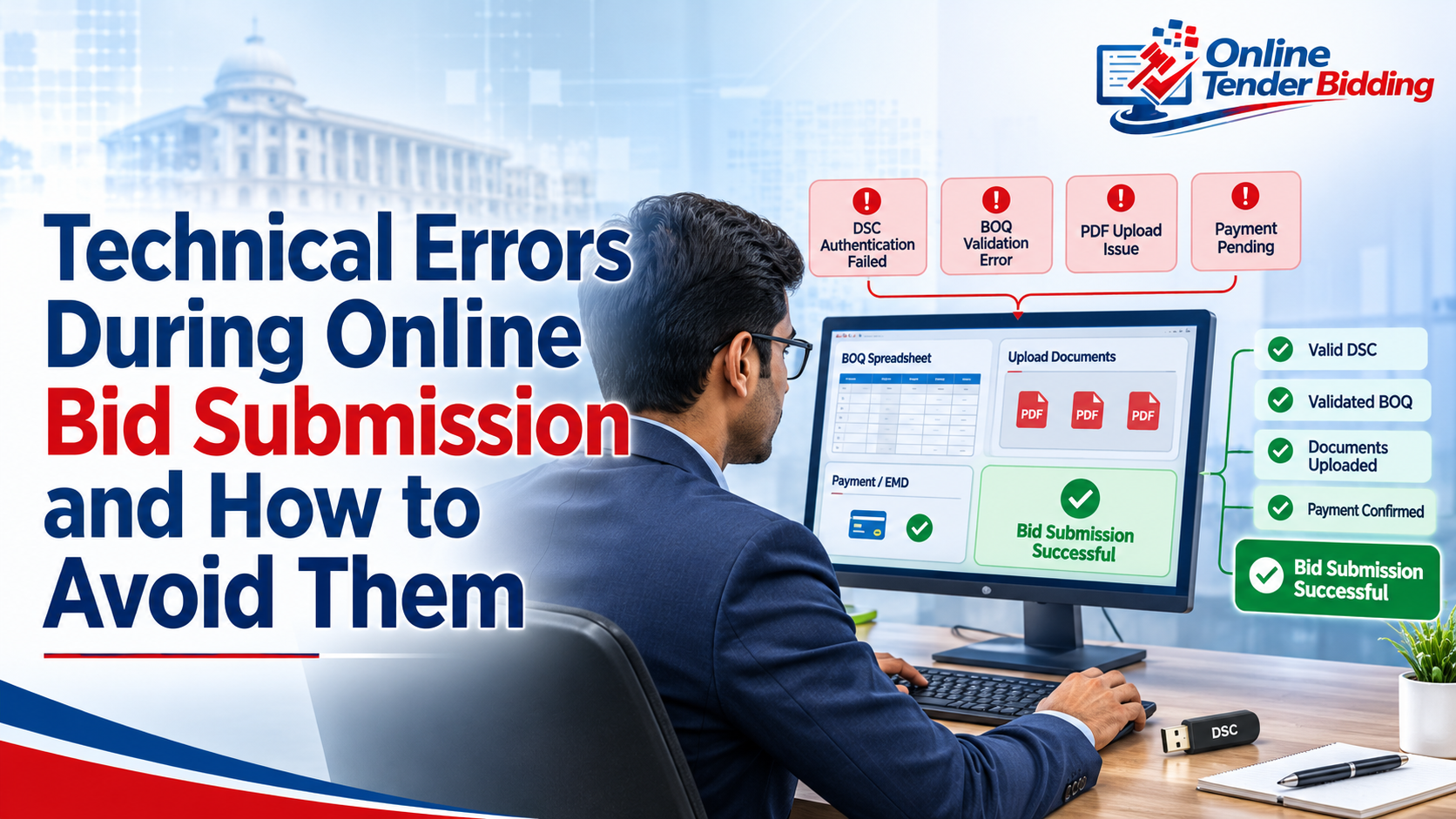
Summary of Common Errors
Reasons for Technical Errors
Each e-procurement platform (government, state NIC and PSU) have strict requirements. Unlike standard websites, additional checks are done to ensure the digital signature is correct, required Java/utilities are present, formatting is correct and the formulas in the spreadsheet are locked. Therefore, if the setup on your device does not meet the technical requirements of the platform, you may experience problems submitting your bid.
On nearly all e-procurement platforms within India, you must include a Class 3 DSC with Signing & Encryption.
Reason
The following issues may cause a problem with detecting/validating the DSC:
• USB token driver is not installed/updated
• Expired or invalid DSC
• Attempting to sign using an individual DSC instead of an Organisation DSC that matches the registered bidder profile.
• DSC is not correctly mapped against the user ID on the portal.
Avoidance
• Check the USB token + validity of the DSC 3-5 working days in advance.
• Within your token utility, ensure Signing & Encryption certificates are visible.
• If you recently updated your token, ensure your renewed DSC is mapped to the portal well in advance.
Many NIC based e-procurement platforms require specific signing utilities and/or browsers to be used in order to read the USB DSC token and create encrypted bid files.
Reason
• Pop-up or port being blocked on your anti-virus/software firewall.
• Multiple different versions of Java/Signer Utilities installed.
• Wrong version of browser or outdated cache files.
Avoidance
• Download the latest NICDSign/signer utility recommended from the ‘downloads’ page on the portal.
• Allow pop-ups for the e-procurement site. Also, ensure anti-virus is not blocking ports required for signing locally.
• Use one clean profile for your browser(s) when completing e-tenders.
On most portals, financial information is included in a file generated by the platform, known as the BOQ.
Reason
• File was opened in LibreOffice, WPS Office or on mobile devices (not Microsoft Excel)
• Renamed BOQ file (BOQ_12345.xls renamed to Final_BOQ.xls).
• Macro disabled (meaning data validation in file will not work).
• Cells containing formatting were copied over from another file (causing disruption of formulae and locked status).
Avoidance
• Always edit the BOQ file in Microsoft Excel on a windows device.
• As the file opens, click Enable Content/Enable Macros.
• Do not rename the BOQ file. Do not add additional rows/columns. Do not change locked cells.
• Manually enter all rates in numeric fields. Check the total amount is calculated correctly.
Supporting documentation (Turnover Certificates, Works Orders, GST and Declaration) must be inserted in specific formats.
Reason
• Files scanned at high resolution (600dpi). This means file may be between 20-50MB meaning it is over the file size limit.
• Special characters included in file name ( @, #, &, %, spaces or double dots ).
• Password protected or corrupt files, meaning evaluation committee cannot open the file.
Avoidance
• Scan documents in greyscale/Black & White with resolution of 150-200dpi. This will keep the file clear but small.
• Keep file names simple (only using underscores / hyphens). Example: Company_Turnover_Certificate.pdf.
• Before uploading, open all merged PDFs to check pages are legible, in the right orientation and not password protected.
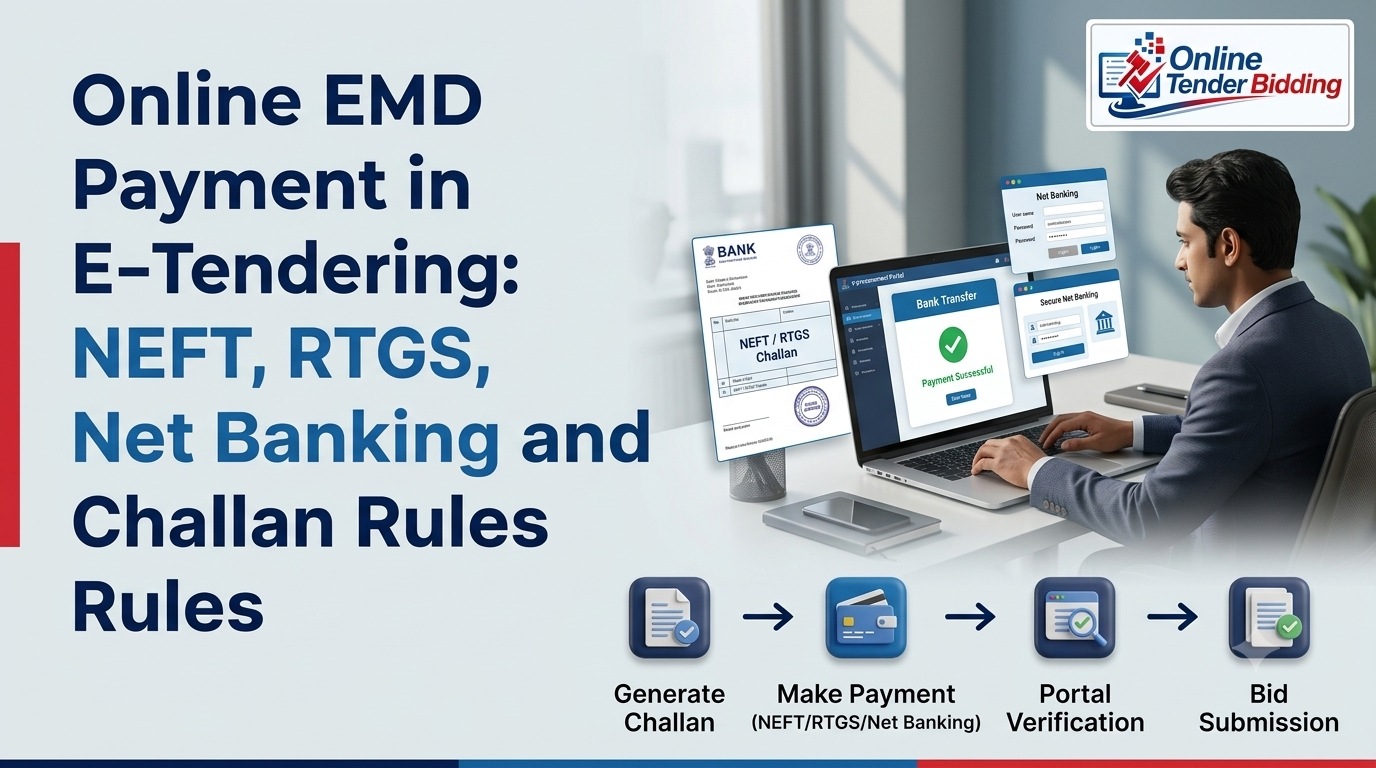
Despite money having been withdrawn from your bank account, the payment may not update and remain as pending/failed.
Reason
• NEFT/RTGS payment initiated too late meaning there was not enough time to process the payment.
• Closing browser before payment page redirects to the tender.
• Exemption Certificate (MSME/Udyam) uploaded in incorrect section, or the correct exemption not selected during payment set up.
Avoidance
• Make your online EMD/Tender Fee payments 24-48 hours in advance.
• Be patient and allow payment page to redirect to the tender website automatically, so that a payment confirmation/receipt number is generated.
• If claiming exemption on EMD, check that your Exemption Certificate falls under the exact category stated in the tender notice.
In two cover bids, financial information must be included in the Financial Cover only.
Reason
• Price quotation / Commercial / BOQ image included in Technical PDF.
• Incorrect file included in multiple document technical cover, due to time pressure.
Avoidance
• Save financial & technical documents in separate folders on your device (01_Technical_Cover & 02_Financial_Cover) prior to logging into the portal.
• Check all PDFs in technical cover so that no financial data is present in any of the documents.
Even if all documents are uploaded, and your BOQ is saved, your bid may not be submitted.
Reason
• Tick boxes appearing green meaning bid is assumed as submitted.
• Timing out during final step of bid.
Avoidance
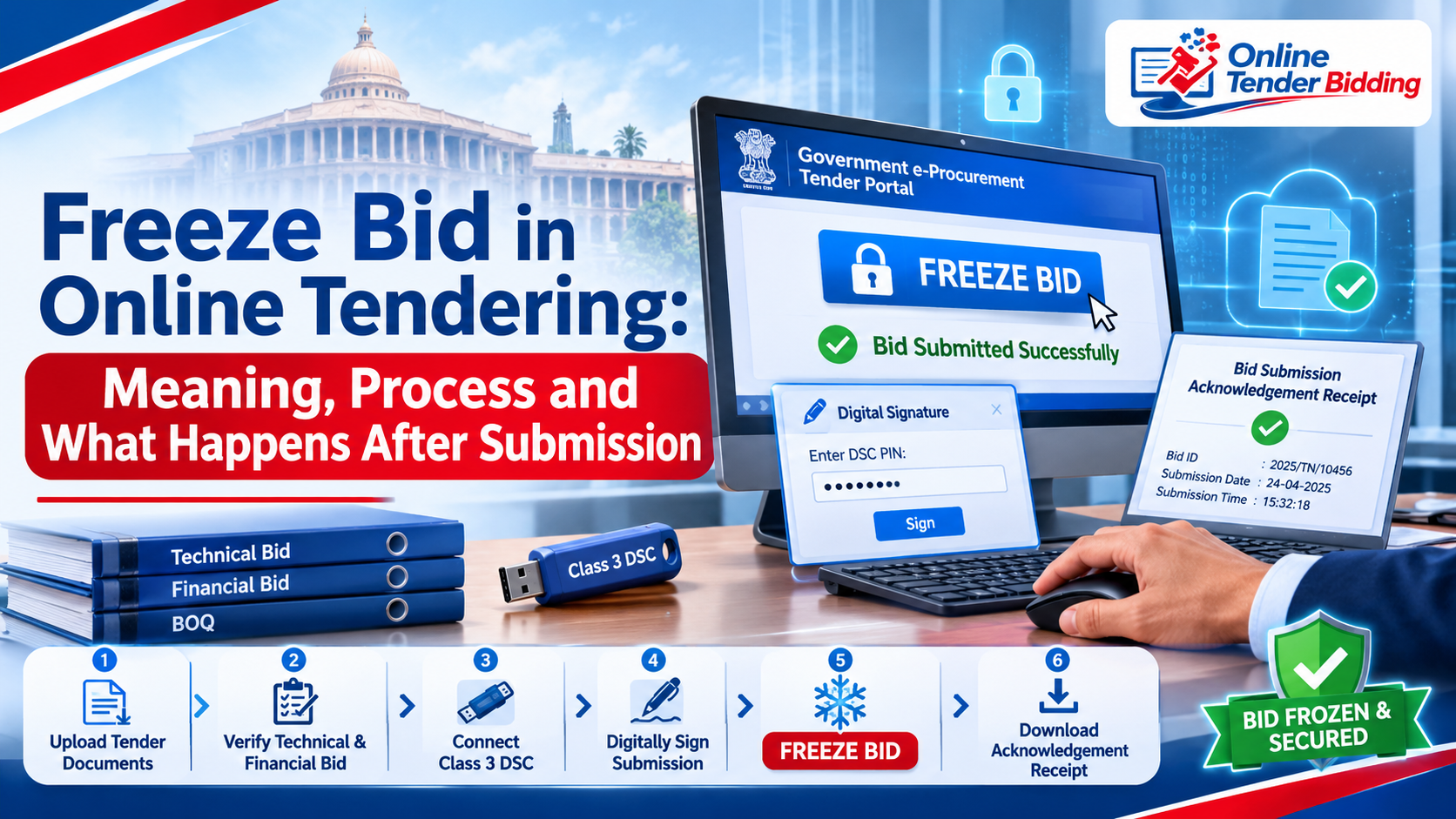
• Go to final confirmation screen and click ‘Freeze Bid’. (Or equivalent final confirmation button depending on site).
• Download Bid Submission Acknowledgement Receipt to confirm timestamp, bid ID and hashes of submitted packets.
• Log out and log back in to check bid is listed under ‘Submitted Bids.’.
Quick Summary
Error Cause Solution
DSC not recognised Missing driver or mapping of renewed DSC. Test token utility and mapping 3+ days in advance.
BOQ validation failed Renamed, macro disabled or edited in incorrect software. Do not rename file, enable macros and edit in Microsoft Excel only.
PDF file not accepted File too big or special characters in title. Scan with 150-200dpi. Only use letters and underscores in title.
Payment status: pending Late NEFT/RTGS or closing browser on payment page. Submit payments 24-48 hours in advance. Allow payment page to redirect to get receipt.
Bid not counted Not clicking Freeze Bid. Click Freeze Bid. Download BidSubmission confirmation.
Technical Check List Prior to Submission
Within a submission, ensure you have:
• Correct System: Windows device, updated browser, clear cache, and signer utility installed.
• DSC Token: Active class 3 signing & encryption certificates mapped with portal login.
• Tender Notice & Amendments: Checked for latest corrigena to ensure latest BOQ and deadlines.
• PDF Files: Cleanly merged, within file size limits, unlocked and with no special characters in titles.
• BOQ File: Completed in Microsoft Excel with macros enabled. Original file name. Total amounts cross checked.
• Tender Fee/ EMD: Confirmed as paid. If applying exemption, have appropriate exemption document.
• Final Check: Bid Frozen before deadline. Bid Submission Acknowledgement saved.
Conclusion
As long as technical issues with bids are identified early, they can usually be easily resolved. Common technical errors causing a bid to be rejected include rushing the submission, renaming BOQ file, not mapping DSC, and not clicking the final bid freeze.
By ensuring your system is set up, files validated in advance and submissions completed well in advance, you can reduce the stress of last minute bids and ensure all eligible bids are accurately recorded.