Many businesses fail to successfully submit a tender as they assume they have successfully submitted it merely due to green ticks displayed beside their uploaded documents and then leave the portal. It is therefore important to understand how to correctly finalise a tender via online tender bidding portals so that your tender is recognised as having been submitted in time.
Introduction to ‘Freeze Bid’
Across e Procurement portals including CPPP (eProcure), NIC state portals and PSU tenders, Freeze Bid (sometimes referred to as Freeze Bid Submission or Final Submit) is used to finalise and submit your tender to the electronic tender box.
Clicking Freeze Bid leads to:
• A unique digital fingerprint (‘hash’) being created for each of your uploaded documents and pricing information using your Class 3 Digital Signature Certificate (DSC).
• The portal updates your tender status to either Submitted or Frozen.
• Your tender is secured and encrypted so that neither you, nor staff within the department, can amend or even view it until the pre-determined tender opening date and time.
As with physical paper tenders, uploading is equivalent to inserting documents into an envelope. Pressing Freeze Bid is analogous to sealing the envelope and then placing it in the tender box. Should you forget to seal and submit your envelope, your documents remain on your desk.
Uploaded and Frozen Bids – A Comparison
Often people mistakenly believe that submitting a tender is equivalent to saving a tender. Below is a summary of how each portal recognises these two actions.
Feature Uploaded / Saved Bid Frozen Bid
Portal Status Draft or In Progress Submitted or Frozen
Department Access Not visible to the department’s assessors Visible in the electronic tender box for tender opening
Editing Capacity Content able to be amended or removed Content is secured. Formal re-submission or withdrawal (where this is permitted) is required
Receipt Confirmation No confirmation received Confirmation of Bid Submission in the form of a PDF is provided
Tender Opening Post the tender deadline, the uploaded content is automatically disregarded Content may be technically and financially opened
How to Freeze a Bid on E-Procurement Portals
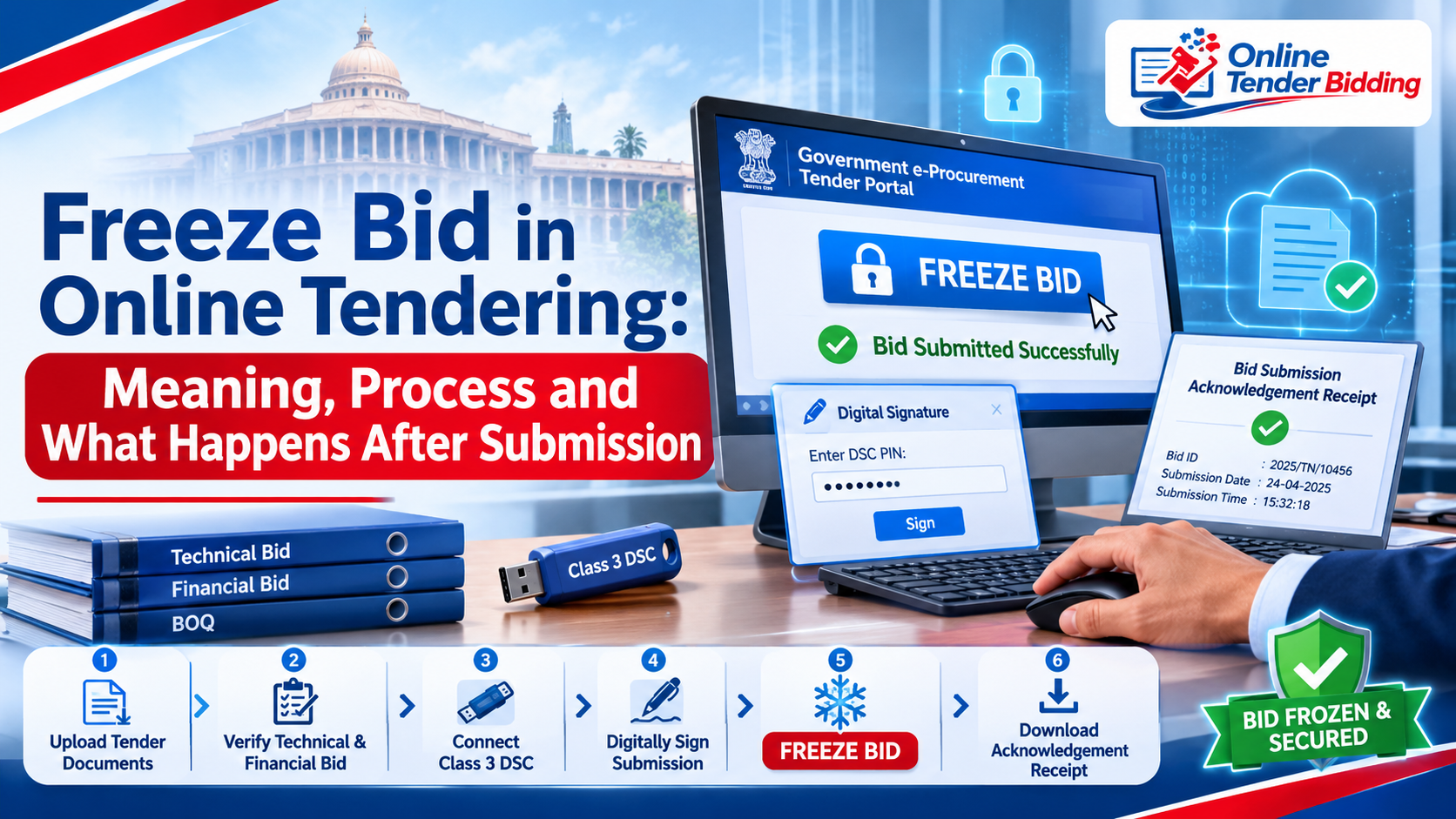
Although the wording of the Freeze Bid button differs slightly between state and central portals, the general process for finalising a tender is made up of six steps:
Confirm Uploaded Content
On the portal preview function, double-check that all of your uploaded documents (technical PDFs) and BOQ Excel spreadsheet are fully completed and undamaged.
Access Final Submission Page
Having saved your pricing (fee/EMD) information along with your technical and pricing content, press Next or Proceed to Final Submission.
Confirm Bid Details
On the confirmation page, ensure that your business details, tender reference, payment status and number of content items are correct.
Sign Using Your Class 3 DSC
Insert your USB crypto token into your computer. When prompted, input your token PIN and digitally sign the Final Submission statement through the signer tool.
Press Freeze Bid Submission
After locating and pressing the Freeze Bid Submission button, wait for the portal page to fully reload. Do not manually refresh or close the browser tab.
Download Confirmation of Receipt
Download the Bid Submission Acknowledgement Receipt (which includes your Bid ID, submission date and time and hashes for your content items). Then re-login to the portal and confirm that your tender is listed within Submitted Bids.
Actions Following Bid Freezing
Following bid freezing, the portal carries out the following actions between tender submission and tender opening.
Although your tender has now been sent to the relevant department servers, no member of staff or administrator is able to access or open your tender or check your pricing information prior to the formal tender opening date and time. Only those authorised to open bids can then open the encrypted content post-tender opening date and time, and they must also digitally sign in using their own DSC token to do so.
Should you recognise an error in your tender following bid freezing, your options will depend on the portal in use:
• Portals Permitting Re-submission (for example CPPP and NIC): Multiple re-submissions can be made prior to the tender deadline. Successive frozen re-submissions supersede previous versions and it is the most recently frozen tender which will be assessed.
• Portals Offering Indefinite Bid Freezing: Some PSU and private e Procurement portals provide for a bid to be indefinitely frozen. Consequently, no alterations or withdrawals can then be made.
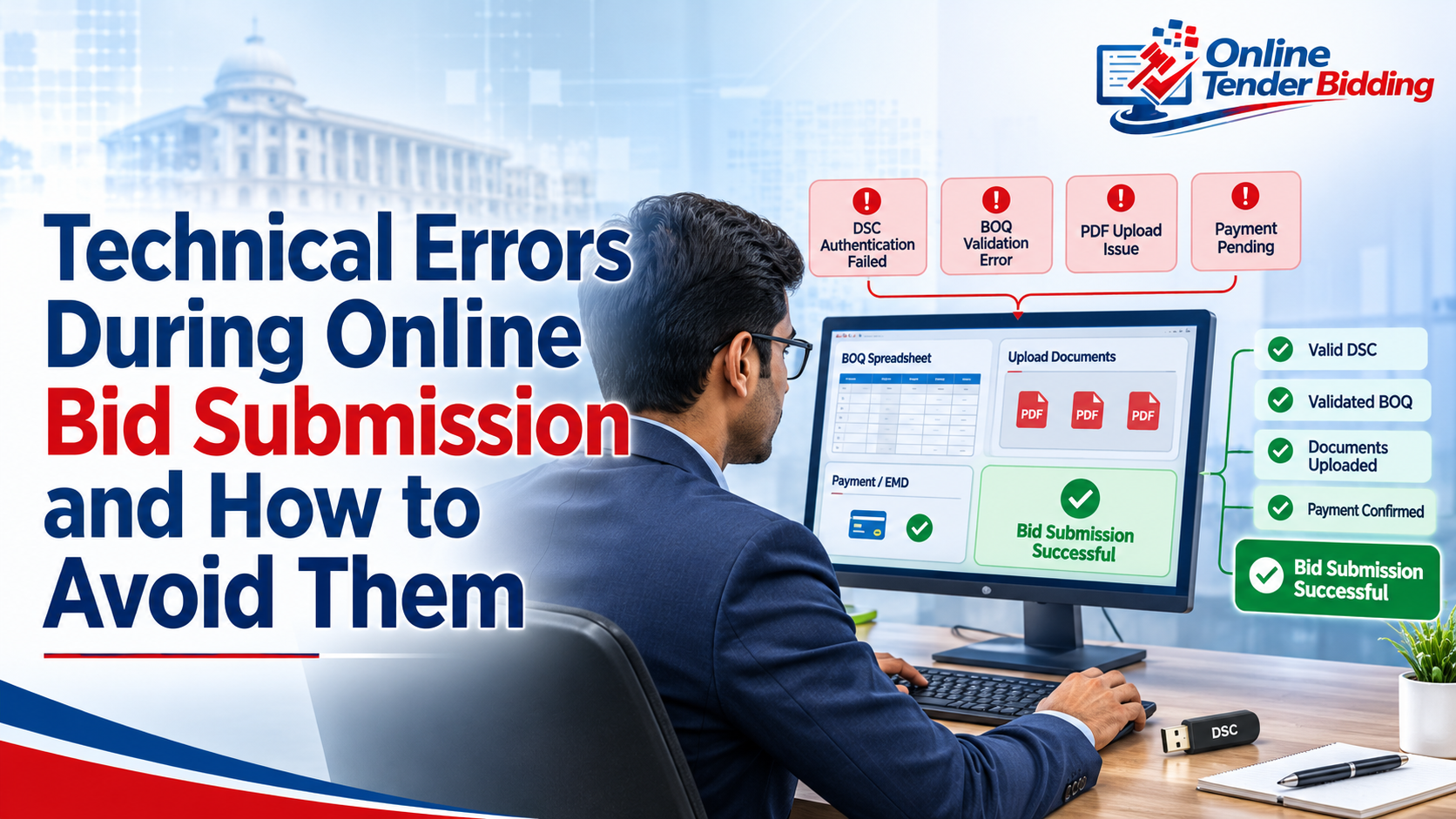
Before freezing your tender always check the conditions set out within the Notice Inviting Tender (NIT) to determine whether re-submission is allowed. If you are amending your tender as a result of previous technical errors, please consult Technical Errors During Online Tender Submission and How to Avoid Them.
During the technical tender opening process, the portal cross-checks the digital hash produced at bid freezing with those of the subsequently decrypted content items. This confirms that your tender has not been altered since submission. Following this, the assessing committee analyses the suitability, trading volume and delivery ability of bidders. Qualified bidders then proceed to financial tender opening.
Frequently Asked Questions
What if my connection breaks at the point I press Freeze Bid?
Immediately re-login to the portal and check your Submitted Bids or My Tenders area. If your tender status continues to display as Draft and there is no Bid Acknowledgement Receipt, promptly re-sign using your Class 3 DSC and re-freeze your tender.
What if a corrigendum is published by the department following bid freezing?
Should a corrigendum amend your BOQ, technical information or suitability criteria after you have frozen your tender, your tender might no longer be suitable. Download and implement the new BOQ or other amended information. Then, prior to the extension to the tender deadline, re-freeze your tender.
Can I rely on Freeze Bid to ensure my tender is accepted?
No. Freeze Bid merely confirms that your tender was submitted in a suitable encrypted format and within the required timescale. Your tender will still undergo detailed technical and commercial analysis by the assessing committee.
Conclusion
Bid freezing is the key process which formally submits your tender from draft format. Ensure that you upload your tender content well in advance of the tender deadline. Subsequently, press Freeze Bid and retain both a copy of your Bid Submission Acknowledgement Receipt together with a screenshot of your Submitted Bids display.
To identify current government tenders and assess associated likely project costs in advance of setting tender prices, see How to Quickly Identify Government Tenders (Tender18).